US English (US)
PH English (Philippines)

Contact Us

If you still have questions or prefer to get help directly from an agent, please submit a request.
We’ll get back to you as soon as possible.

Please fill out the contact form below and we will reply as soon as possible.

  • Contact Us
English (US)
US English (US)
PH English (Philippines)
  • Home
  • Recovery Record
  • Linking

How to link with your clinician (therapist, dietitian etc)

Written by Stuart Argue

Updated at January 6th, 2026

Contact Us

If you still have questions or prefer to get help directly from an agent, please submit a request.
We’ll get back to you as soon as possible.

Please fill out the contact form below and we will reply as soon as possible.

  • Recovery Record for Clinicians
    Learn Linking with Clients Introducing Clients to the App Client Experience Privacy Subscriptions & Billing Logging Boundary Setting Account Management Security & Passwords Research Odd App Behavior Bespoke Customizations Miscellaneous Group Accounts
  • Recovery Record
    Fundamentals Logging & Log Configuration Linking Personalization Account Management Web Interface Affirmations and Rewards Community Privacy and Data For Parents Miscellaneous
  • Nourishly
    Fundamentals Logging & Log Configuration Linking Personalization Account Management Web Interface Affirmations and Rewards Privacy and Data Miscellaneous
  • Nourishly for Clinicians
    Learn Linking with Clients FAQ Introducing Clients to the App Client Experience Privacy Subscriptions & Billing Logging Boundary Setting Account Management Security and Passwords Miscellaneous Group Accounts
  • Clinic Licenses
    Clinic License Basics Managing your Clinic License Training
  • MoodLinks
    Fundamentals Linking
+ More

Fantastic that you are ready to link with your clinician.  If you don't have someone to link to yet see our how to find a clinician article.

To link you'll need to 

a) have created an account with Recovery Record, and 

b) know either the email  address or "Link Code" of your clinician.

The link code is a four or five digit code your clinician can give you to make linking easier. 

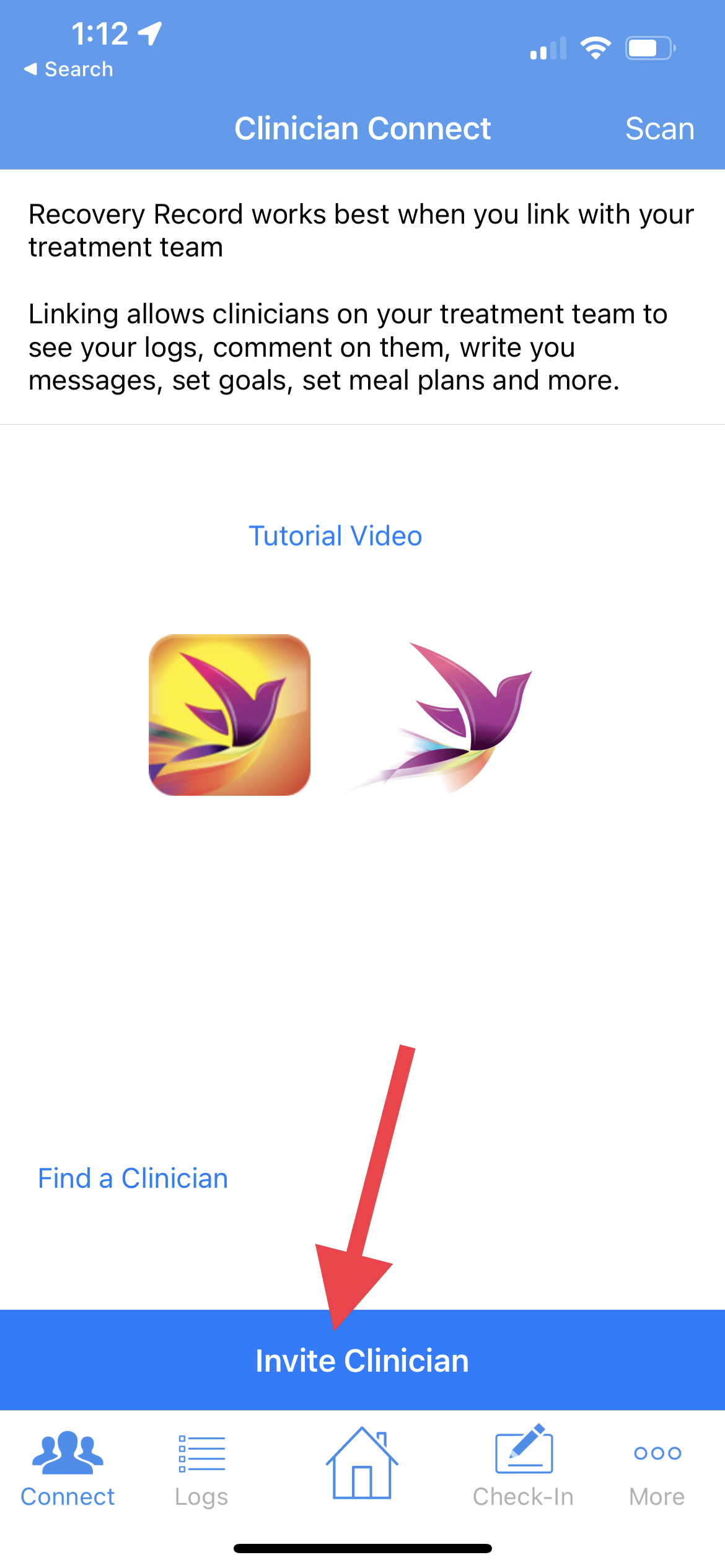
Tap "Connect" at the bottom left of the home screen. Then tap "Invite Clinician" at the bottom of the screen. If you haven't created an account yet or you are not signed in you'll be guided through that first. 

When you get to the "Invite Clinician" screen you can enter your clinician's Link Code if you know it or alternatively you can enter their email address. If your clinician has an account they will simply need to accept the link invitation. If not, they'll need to register for a Recovery Record account and accept your link invitation. 

That’s it! You’ll be receiving connected care in no time :)
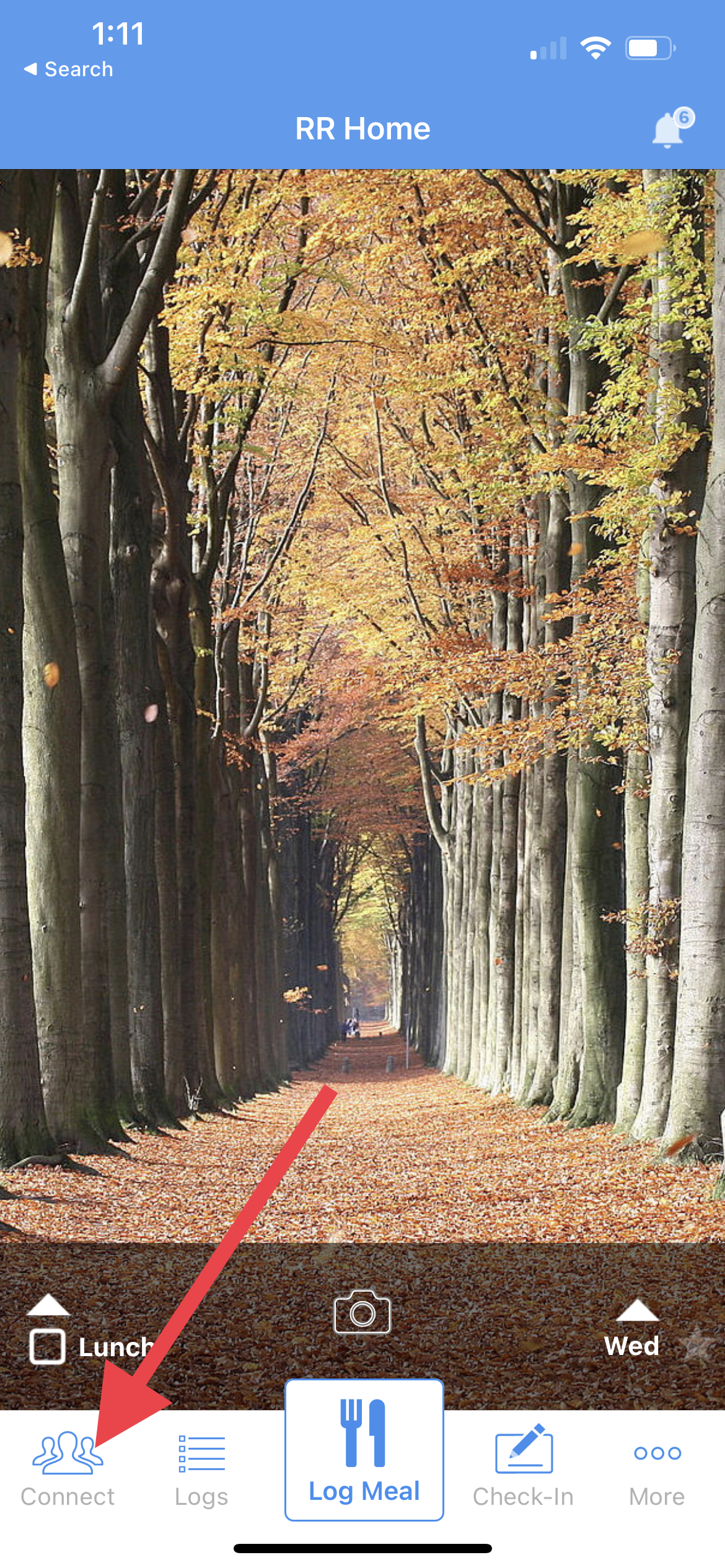
Tap “Connect”
Tap “Invite Clinician”
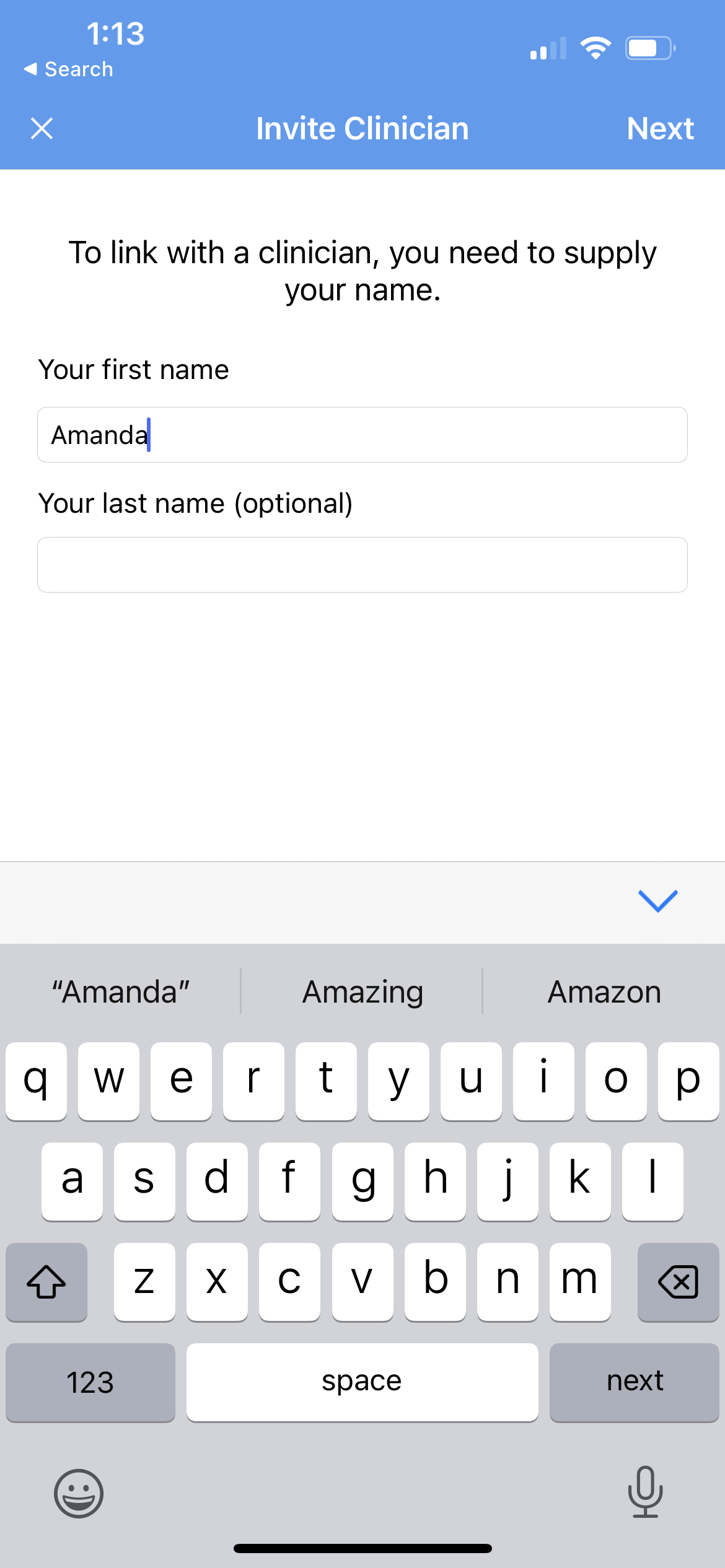
Enter your first name or a nickname. Last name is optional. Then click “Next”

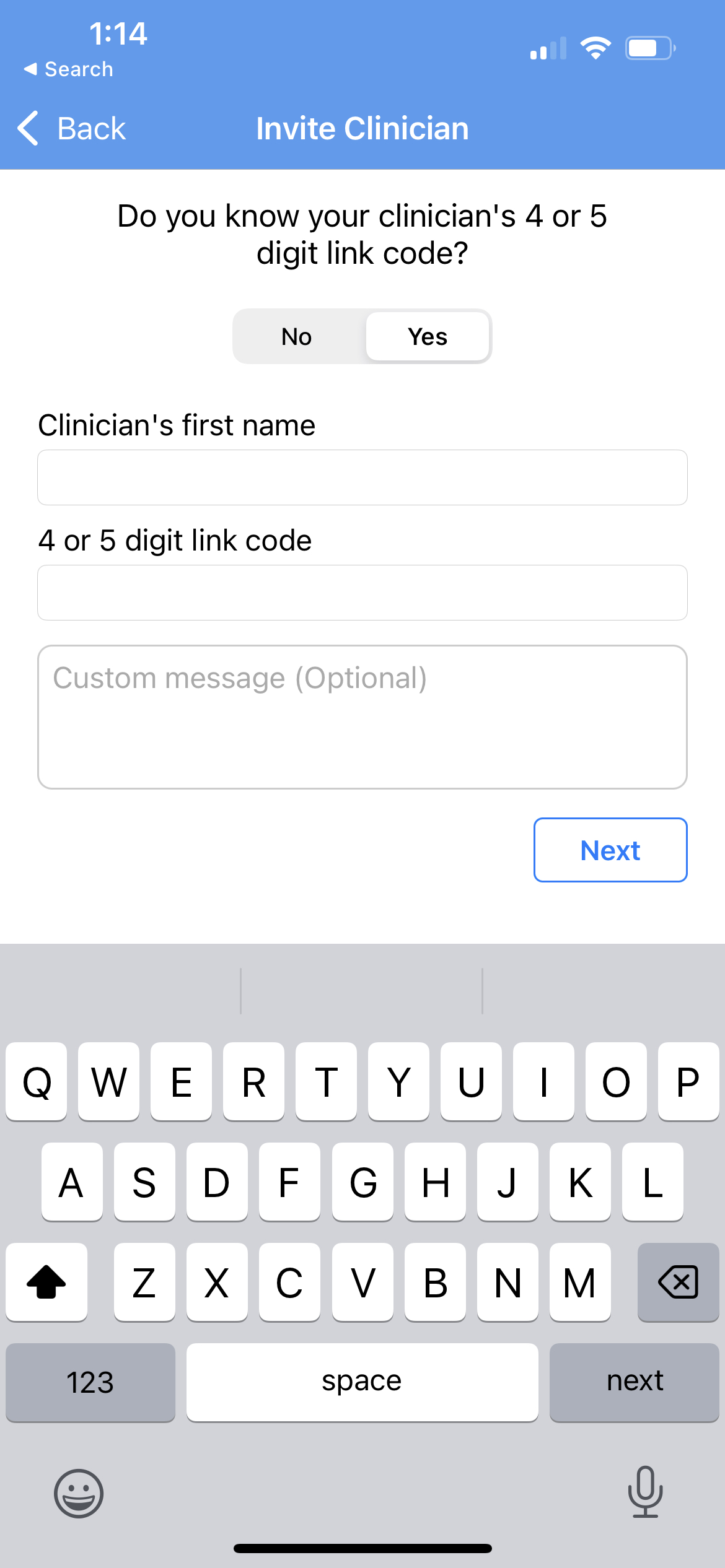
By link code

If you know your clinician's link code answer “Yes” and enter the details and click “Next”.

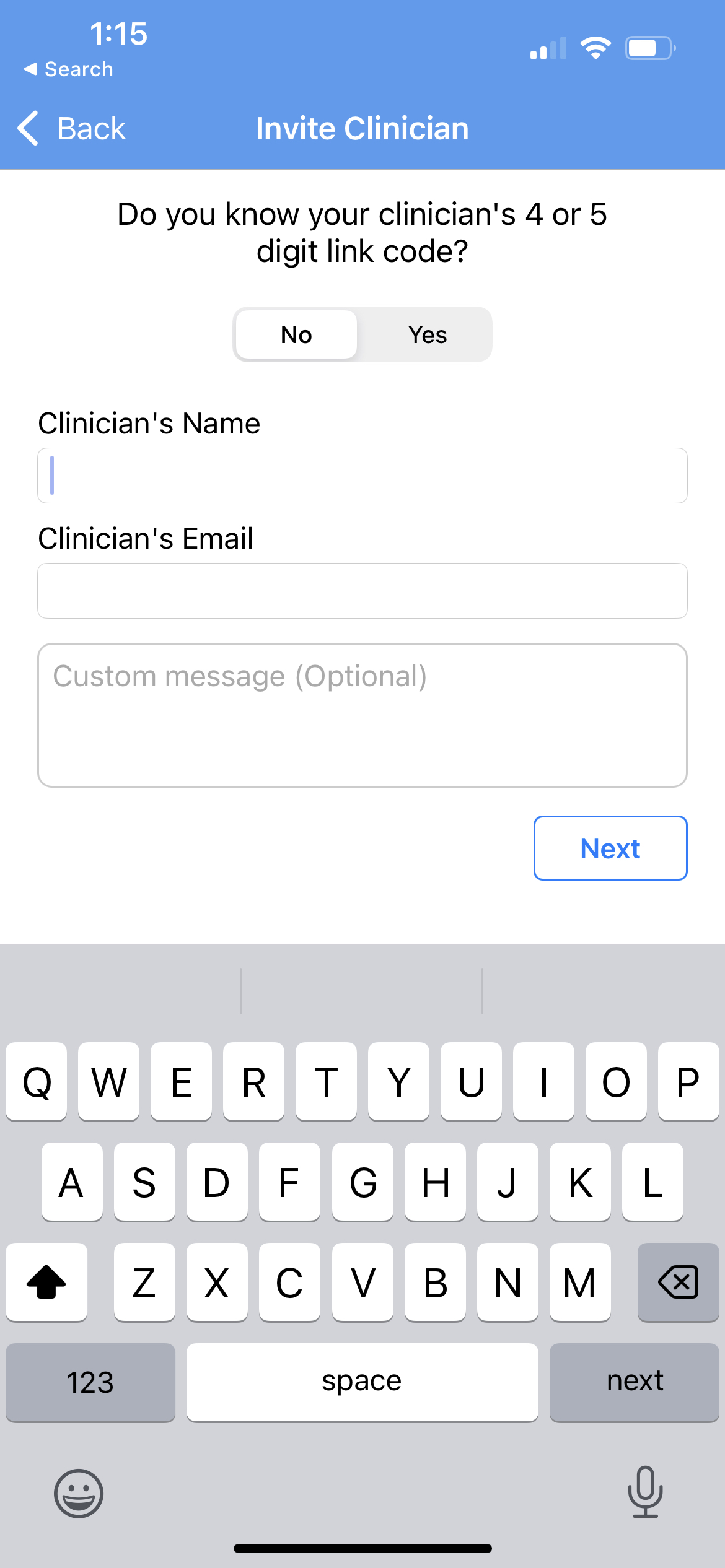
By email

If you don't know the link code click “No” and enter the clinician's email.
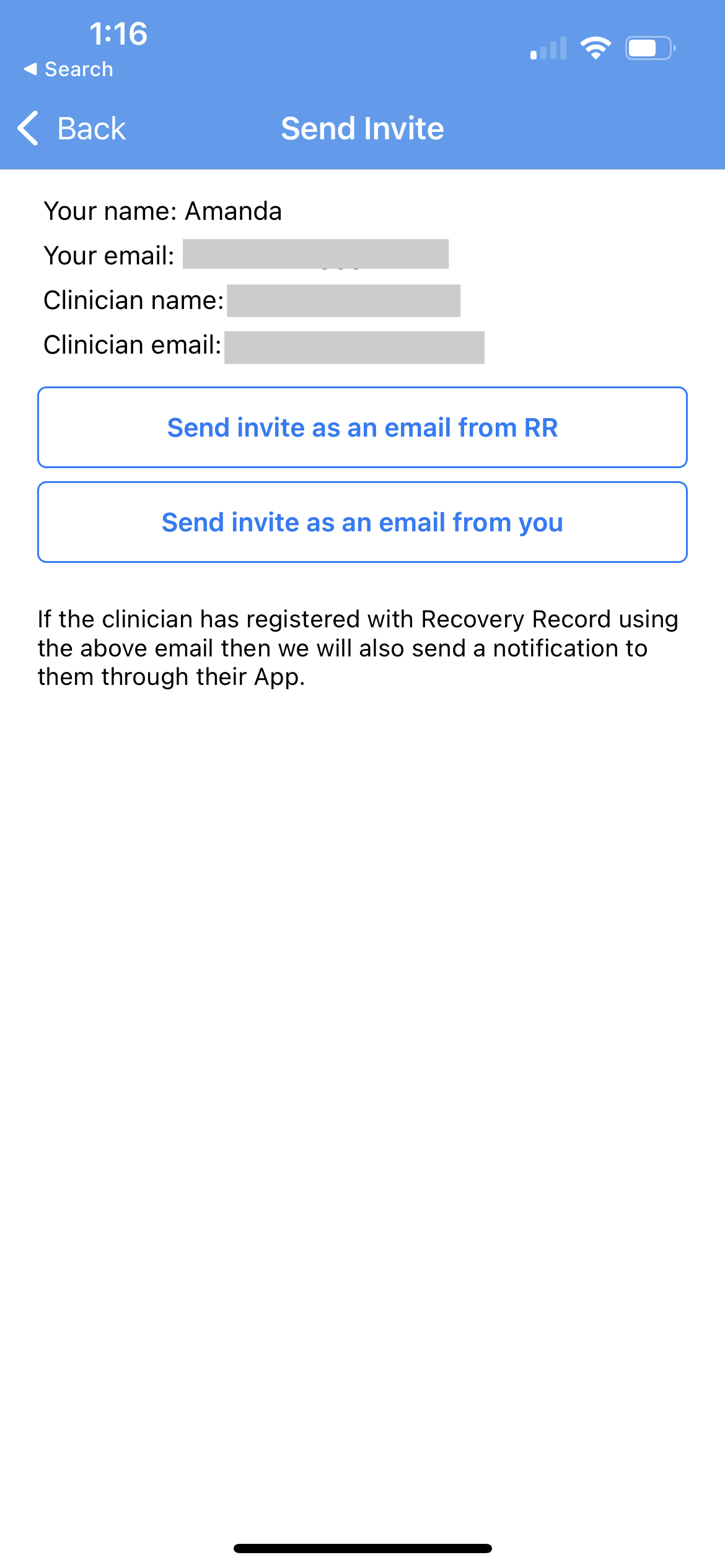
You have the option of us sending the invite email or sending it yourself. Once sent you'll see the invite status. You'll be notified when the clinician accepts the invite.


communicate connect

Was this article helpful?

Yes
No
Give feedback about this article

Related Articles

  • I can't see my very old logs in the calendar
  • How to customize meal log questions
  • What do the log icons/symbols mean?
  • How to bulk delete logs

Content over

Footer

Bright

Bright is a multi-diagnostic platform dedicated to enabling all providers to deliver the next generation of behavioral health care.

Main Links
  • Patient Web Login
  • Provider Groups
  • Health Plans
  • Research
  • Contact Us
Products
  • Recovery Record
  • Recovery Path
  • Nourishly
  • Nourishly for Diabetes
  • MoodLinks
  • Fast FODMAP for IBS
Help
  • FAQ
  • Patients Knowledge Base
  • Clinician Knowledge Base
  • Terms of Use
  • Privacy Policy
Get In Touch
  • Contact Us
  • San Francisco, USA

Copyright 2025 © Recovery Record, Inc. All rights reserved.


Knowledge Base Software powered by Helpjuice

Expand